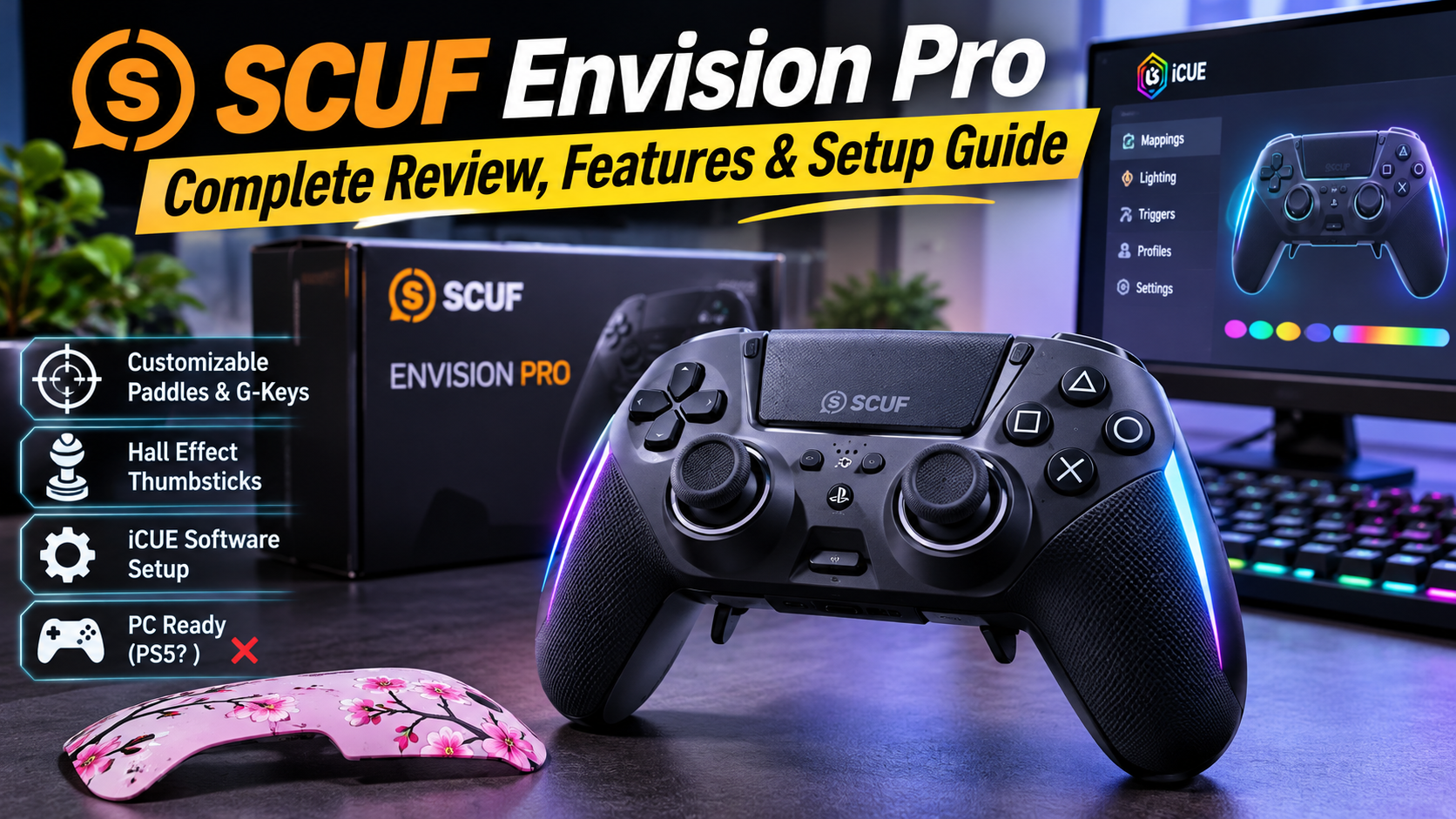
SCUF Envision Pro: Complete Review, Features & Setup Guide
The SCUF Envision Pro is a PC-first wireless and wired gamepad that packs four rear paddles, two side SAX buttons, five G-Keys, adjustable instant triggers, and a magnetic faceplate into a symmetrical shell. Choose the scuf envision pro v2 if you want Hall Effect thumbsticks to resist stick drift, whereas the original scuf envision pro v1 uses standard potentiometer modules. It does not work natively on a PS5 console, and full customization runs through Corsair iCUE software. A practical takeaway runs through every section of this guide: treating extra paddles and G-Keys as a gradual muscle-memory upgrade rather than binding every button on day one prevents misclicks in fast matches.
What is the SCUF Envision Pro Controller?
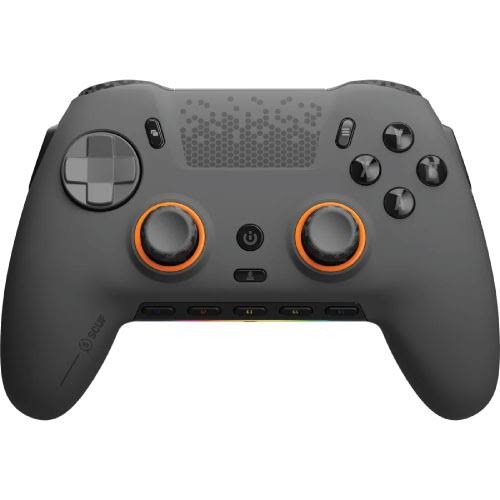
The SCUF Envision Pro bridges the gap between a standard console pad and a mechanical keyboard by putting extra physical switches right under your fingers on a Windows PC. Instead of forcing you to reach for keyboard keys during a firefight, it puts dedicated shortcuts and macros directly on the controller.
SCUF Gaming builds the controller under Corsair, its parent company, which explains why the hardware links straight to Corsair’s PC software. Competitive console and PC players already know SCUF for rear paddles, trigger stops, and swappable parts built for fast action games.
This gamepad targets PC gamers who play competitive shooters, action RPGs, or strategy and MMO titles that reward quick shortcuts. It supports Windows 10 and Windows 11, and it skips native play on PlayStation 5, Xbox consoles, macOS, and Linux.
Standard PC controllers give you face buttons, bumpers, triggers, and thumbsticks, while this model adds four rear paddles, two side SAX buttons, five G-Keys, dual-mode triggers, and a removable faceplate. That extra button count lets you keep your thumbs on the sticks while handling movement, reloads, or chat toggles.
Key hardware traits set its daily workflow apart:
- Four remappable rear paddles and five G-Keys for in-game actions, keybinds, or macros.
- Two side-mounted SAX buttons near the upper shoulders for extra finger reach.
- Dual-mode triggers that flip between short mouse-click pulls and full analog travel.
- Low-latency 2.4GHz wireless via a USB dongle, Bluetooth pairing, and wired USB-C play.
SCUF Envision Pro Specifications and Key Features
The SCUF Envision Pro controller uses a symmetrical thumbstick layout similar to a PlayStation pad, paired with sculpted grips that fit comfortably in average-sized hands. Its body measures roughly 165 x 107.5 x 63.5 mm and weighs around 315 grams, giving it a solid, planted feel on a desk or lap.
Hall Effect thumbsticks arrive on the V2 revision and read stick movement using magnetic sensors instead of physical contact wipers. Because magnetic sensors do not rub against a resistive track, they resist wear and stick drift better over long sessions. You also get interchangeable thumbsticks in the box to adjust stick height and concave or domed tips.
Four programmable rear paddles sit along the inner curves of the rear grips so you can jump, slide, crouch, or reload without moving your thumbs off the sticks. You can map each paddle on its own and pop off the inner pair when a two-paddle layout feels cleaner.
Mechanical action buttons on the face and D-pad rely on crisp switches that click with a short travel distance. That tactile snap helps when tapping quick weapon swaps, ping commands, or combo inputs.
Five programmable G-Keys sit along the bottom edge of the front shell, giving Windows players hardware keys for macros, mute toggles, media tracks, or app shortcuts. Paired with the two side SAX buttons, they add seven extra inputs beyond a standard gamepad.
Adjustable instant triggers let you flip physical switches on the back to move between hair-trigger mouse clicks and full analog pulls. Flipping to short stops speeds up semi-auto shots in shooters, while full travel helps when feathering a throttle in a driving game.
RGB lighting accents trim the front edge and can be customized or turned off in software to save battery. A magnetic faceplate snaps cleanly over the front housing so you can swap styles or clean around the stick wells without tools.
Wired and wireless connectivity includes a 2.4GHz wireless dongle for low-latency PC play, Bluetooth for flexible pairing, and a braided USB-C cable for wired matches and charging. A 3.5 mm headset jack on the bottom edge lets you plug in a wired headset directly.
Battery life reaches roughly 19 hours on a charge depending on RGB brightness and wireless mode, or up to about 31 hours with lighting off in typical play. Plugging in the USB-C cable lets you keep playing while the battery tops back up.
SCUF Envision Pro V1 vs V2: What Are the Differences?
Comparing SCUF Envision Pro V1 vs V2 centers on thumbstick sensor hardware rather than a total overhaul of the controller’s shape. Both revisions keep the same layout, rear paddles, SAX buttons, G-Keys, instant triggers, and PC-focused design.
The original scuf envision pro v1 ships with standard analog potentiometer thumbsticks. Potentiometers feel familiar out of the box and allow fine deadzone tuning, yet sliding metal contacts wear down over time and can cause stick drift.
The updated scuf envision pro v2 swaps in Hall Effect thumbsticks to solve that long-term wear point. Using magnetic sensing removes physical wiper friction on the stick axis, which helps preserve centering accuracy across hundreds of hours of play.
Hall Effect thumbstick technology is the headline upgrade in V2 for players who grind ranked shooters or action games every week. Some competitive aimers still compare stick tension and response curves closely in their favorite titles, so testing dead zones in-game remains smart on either version.
Changes in design and performance stay subtle outside the stick sensors. The symmetrical layout, mechanical face switches, four rear paddles, and adjustable triggers remain consistent across the line.
Connectivity and software stay closely aligned—both rely on Windows PC connections and Corsair iCUE for full customization. Check the model details on the box or store page before buying so you know whether you are getting V1 or V2.
| Feature | SCUF Envision Pro V1 | SCUF Envision Pro V2 |
| Thumbstick Sensors | Standard potentiometer modules | Hall Effect thumbsticks |
| Supported Platform | Windows PC | Windows PC (Windows 10/11) |
| Extra Inputs | 4 rear paddles, 2 SAX buttons, 5 G-Keys | 4 rear paddles, 2 SAX buttons, 5 G-Keys |
| Triggers & Switches | Adjustable triggers, mechanical switches | Adjustable triggers, mechanical switches |
| Configuration Software | Corsair iCUE | Corsair iCUE |
Which version gives better value depends on price gaps and how long you plan to keep the controller. When V2 sits close in price to V1, Hall Effect thumbsticks make V2 the safer long-term choice; if V1 drops heavily on sale and you prefer its stick feel, it can still save money upfront.
Upgrading from V1 to V2 makes the most sense if your V1 shows stick drift or heavy wear. If your V1 still centers cleanly and feels great, holding onto it saves money until you actually need a replacement. Applying a gradual muscle-memory upgrade approach also helps when adjusting to any new stick height or tension.
SCUF Envision Pro Software: How to Download and Set Up iCUE
SCUF envision pro software runs through Corsair iCUE on Windows, giving you access to key remapping, macro creation, RGB controls, and deadzone or trigger tweaks. Basic inputs register on Windows even without iCUE running, while keeping iCUE active unlocks full software mappings and lighting effects.
Download the official iCUE installer directly from Corsair’s website rather than grabbing installers from unknown third-party sites. Official downloads keep your setup clean and ensure current device support.
Run the installer on your Windows PC and follow the prompts to finish setup. Open iCUE after installation and let it finish initial device checks before building custom profiles.
Connect the controller via USB-C during initial setup and firmware updates so power and data stay steady. Once iCUE recognizes the hardware, you can dial in settings and switch back to wireless play.
Creating and managing controller profiles lets you save separate setups for different games or tasks, such as one profile for competitive shooters and another for single-player games or media shortcuts. Separate profiles keep your controls organized without manual rebinding before every session.
Customizing buttons, paddles, and G-Keys inside iCUE lets you assign standard gamepad buttons, keyboard keys, or multi-step macros to the paddles, SAX buttons, and G-Keys. Keep early changes light so a gradual muscle-memory upgrade helps you hit each new input cleanly under pressure.
Adjusting RGB lighting and trigger settings lets you match your desk setup and fine-tune how inputs respond. Saving your configuration to onboard memory ensures hardware mappings stay stored on the controller even when iCUE closes or you move between PCs.
How to Set Up and Use the SCUF Envision Pro
When you unbox the controller, check the box contents: the gamepad, a braided USB-C cable, the wireless USB dongle, spare thumbsticks, blanking plates for the SAX and inner paddles, and the inner paddle removal tool. Store the spare caps and plates in a small box so you do not lose them.
Charge the controller before first use by plugging the USB-C cable into a powered port on your PC. A solid initial charge avoids low-battery drops while you pair the wireless dongle and test settings.
Connecting through USB-C is simple: plug the braided cable into the top port of the controller and a USB port on your PC. Wired mode gives you steady power, low-latency play, and an easy connection for firmware updates.
Setting up wireless connectivity starts by plugging the 2.4GHz receiver into an open USB port on your PC and sliding the controller’s mode switch to wireless. Place the receiver where metal cases or crowded USB hubs do not block the signal.
Installing the required software means setting up Corsair iCUE on Windows so you can customize bindings, check for firmware updates, and save profiles. Checking for updates every few weeks keeps features and device support current.
Configuring your preferred controller layout starts with picking your thumbstick caps, choosing between two or four rear paddles, and assigning G-Keys and SAX buttons to actions you use often. A gradual muscle-memory upgrade works far better than binding all twelve extra inputs at once.
Testing buttons and thumbsticks in a Windows game controller tester or an in-game practice range confirms every paddle, face button, trigger stop, and stick axis works as expected. Running a quick check before a ranked match prevents mid-game surprises.
SCUF Envision Pro Paddles: Customization and Functions
Four rear paddles sit along the back of the grips so you can press key actions without lifting your thumbs off the analog sticks. Keeping your thumbs on the sticks helps you track targets and steer smoothly during fast movement.
To remap the paddles, open iCUE, select the controller, and assign a button, key, or macro to each paddle slot. Save or overwrite your onboard hardware profile so those assignments stay active on the device.
Choosing different paddle configurations lets you match the back of the controller to your grip style and hand size. Some players keep all four paddles active for maximum shortcuts, while others prefer a two-paddle layout for simplicity.
Removing unused inner paddles takes seconds with the included removal tool and blanking plates. Taking out inner paddles you do not use cuts down on accidental presses during intense gunfights.
Using onboard paddle profiles keeps your key mappings stored directly on the controller’s internal memory. Check which profile is active before a match so you never drop in with the wrong layout.
For FPS and competitive games, many players map jump, crouch or slide, reload, and weapon swap or ping to the rear paddles. Starting with one or two core actions supports a gradual muscle-memory upgrade and helps you build reliable habits without fumbling.
SCUF Envision Pro Paddles Not Working? Common Fixes
Running into SCUF Envision Pro paddles not working can feel frustrating mid-match, yet most paddle issues trace back to profile states, software sync, or connection modes rather than broken switches. Work through these steps in order to pinpoint the cause:
- Check controller connectivity. Confirm whether you are wired or wireless, reconnect the USB-C cable or wireless dongle, and test inputs on a controller tester to see if basic buttons register.
- Verify paddle button assignments. Open iCUE and confirm each rear paddle has an active mapping instead of an empty or conflicting assignment.
- Check iCUE software settings. Make sure iCUE is running smoothly and not stuck in a conflicting profile state that overrides your paddle bindings.
- Switch between controller profiles. Cycle through your saved profiles or select your intended preset so you are not on a blank or old profile.
- Update software and firmware. Install available iCUE updates and apply any pending controller firmware updates while connected over USB-C.
- Test onboard hardware mappings. Set your hardware mappings in iCUE and overwrite the onboard profile slot so the controller runs the mapping directly.
- Reset and reconnect the controller. Gently remove the magnetic faceplate, locate the small recessed reset pinhole near the A and B buttons, press and hold the reset button for about 3 to 5 seconds using a non-sharp tool like a toothpick or SCUF key, then connect via USB and press Start.
- When to contact SCUF support. If paddles still fail to register across profiles, reset attempts, and wired or wireless checks, contact SCUF support with your serial number and the steps you already tried.
SCUF Envision Pro Faceplate: Design and Customization
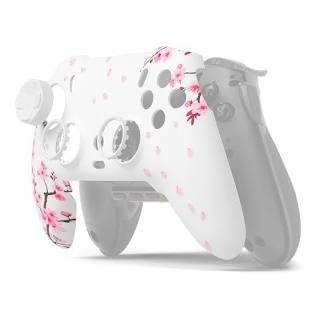
The SCUF Envision Pro faceplate is a removable magnetic front shell that snaps over the controller’s front housing and thumbstick wells. Magnetic attachment lets you lift it off and snap it back on cleanly without screws or pry tools.
To remove and reinstall the faceplate, pull gently from the top edge with your fingers and lift it clear of the sticks. To put it back on, align the cutouts over the buttons and thumbsticks and let the magnets seat it flush.
Available colors and customization options include solid finishes, graphic patterns, and special edition artwork. Swapping faceplates refreshes the controller’s look quickly while keeping the underlying switches and sticks intact.
Replacement faceplate compatibility is specific to the SCUF Envision model line, since magnet positions and cutouts match its shell geometry. Always check that a faceplate is made for the Envision before ordering.
The SCUF Envision Pro Cherry Blossom look—available via the SCUF Envision Cherry Blossom faceplate or matching editions—adds soft pink and white blossom artwork across a clean shell. It gives a PC desk setup a distinctive floral look while keeping the magnetic fit and anti-friction stick rings.
To maintain the controller’s appearance, wipe the faceplate and textured grips lightly with a soft, dry or slightly damp microfiber cloth. Skip harsh solvents or abrasive pads, and brush dust away from the thumbstick rings and button gaps periodically.
Is the SCUF Envision Pro Compatible With PS5?
No—the controller is built for Windows PC and is not natively compatible with PlayStation 5. It does not offer official PS5 console support or PS5 DualSense console features.
You cannot plug it directly into a PS5 and expect standard native gameplay out of the box. Buyers looking for a plug-and-play PS5 controller should look elsewhere.
PC compatibility requires Windows 10 or Windows 11 with a USB port or wireless receiver. Native support does not extend to macOS, Linux, or current-generation consoles.
PlayStation compatibility matters if you split time between a living-room PS5 and a Windows gaming rig. A PC-only controller will not cover console couch sessions.
If you want a SCUF controller for PlayStation 5, look at SCUF’s dedicated PS5 controllers instead. Picking a model made for PS5 gives you proper console compatibility from day one.
SCUF Envision Pro Review: Performance and Real-World Experience
In this scuf envision pro review, real-world value stands out most when you put the extra paddles, SAX buttons, and G-Keys to practical use. Binding key actions to those switches keeps your thumbs on the sticks and reduces awkward hand shifts during fast action.
Comfort during long gaming sessions holds up well thanks to the sculpted grips and balanced weight. Players who like symmetrical thumbsticks settle in quickly, while players used to offset sticks may need a short adjustment period.
Thumbstick accuracy and responsiveness feel sharp, especially with interchangeable caps and deadzone adjustments in software. On V2 models, Hall Effect sensors add extra confidence against long-term stick drift.
Paddle performance in competitive games shines when you assign high-frequency actions like jumping, sliding, or reloading. Four paddles give plenty of options, though a gradual muscle-memory upgrade helps you avoid accidental squeezes while your grip adapts.
Trigger response and button feedback are clear strengths: instant trigger stops feel snappy in shooters, and mechanical face switches deliver crisp clicks. Full trigger travel remains useful when you want analog range in driving games.
Wireless connection reliability is strong over the 2.4GHz dongle when positioned cleanly near your PC, and wired USB-C stays ready whenever you want a direct cable connection. Keeping the receiver away from interference helps maintain steady wireless response.
The software experience in iCUE offers deep customization, though running background software can feel heavier than a simple plug-and-play controller. Players who prefer zero background apps may find the extra setup less appealing.
Its biggest strengths are high input count, tactile mechanical switches, adjustable triggers, and deep PC customization. Its main weaknesses are Windows-only support and occasional iCUE software quirks.
Pros and Cons of the SCUF Envision Pro
Pros:
- High button count with four rear paddles, two SAX buttons, and five G-Keys
- Crisp mechanical switches and dual-mode adjustable triggers
- Hall Effect thumbsticks on V2 for stronger stick-drift resistance
- Flexible 2.4GHz wireless, Bluetooth, and wired USB-C play plus swappable faceplates
Cons:
- Limited to Windows PC—no native PS5, Xbox, macOS, or Linux support
- iCUE software adds complexity and occasional profile or sync hiccups
- Many extra inputs can feel busy if you play simple games
There is a real software learning curve if you want to build custom macros, tune deadzones, and keep profiles organized in iCUE. Once your setup is dialed in, daily play becomes smooth and repeatable.
Compatibility limits are the clearest trade-off: if you play on PS5 or consoles, look for a console-supported controller instead. Value is highest for Windows players who will actually use the rear paddles, G-Keys, and trigger stops rather than leaving most of the hardware untouched.
Is the SCUF Envision Pro Worth Buying?
The controller is worth buying for dedicated Windows PC gamers who want a customizable gamepad with paddles, extra shortcut keys, and instant trigger stops. If you mostly play on a console or want zero software overhead, another option will suit you better.
For FPS gamers, it fits well thanks to short trigger stops, remappable back paddles, and responsive mechanical clicks. Those features help you keep aiming while handling movement and quick actions.
For casual gaming, it offers more buttons than you strictly need, though G-Keys and media shortcuts can still come in handy on a PC. Casual players who only press face buttons may not get full value from the extra controls.
Existing V1 owners should check stick condition before buying V2. If your V1 works reliably and feels great, there is no rush to replace it; if you want Hall Effect sensors or have stick drift, V2 is worth considering.
Before buying, confirm whether the listing is V1 or V2, verify you play on Windows PC, and decide if you like tuning profiles in iCUE. Planning a gradual muscle-memory upgrade on the extra buttons also helps you get the most out of your purchase without feeling overwhelmed.
Final Verdict: Should You Choose the SCUF Envision Pro?
Overall, the controller is a capable, customizable PC gamepad built for players who want extra buttons and hardware tuning. It stands out by pairing a familiar gamepad shape with paddles, SAX buttons, G-Keys, and adjustable triggers.
Performance and customization are its strongest points, especially when you build clean layouts and save profiles to onboard memory. Its main drawbacks remain Windows-only compatibility and occasional iCUE software friction.
Choose this controller if you game on Windows PC and want rear paddles, extra shortcut keys, and Hall Effect thumbsticks on the V2 model. Skip it if you need PS5 compatibility or prefer a controller that requires no PC software.
Frequently Asked Questions About SCUF Envision Pro
What is the SCUF Envision Pro? The SCUF Envision Pro is a wireless and wired Windows PC controller featuring four rear paddles, two SAX buttons, five G-Keys, adjustable triggers, and a magnetic faceplate.
What is the difference between SCUF Envision Pro V1 and V2? The V2 model uses Hall Effect thumbsticks while V1 uses standard potentiometer sticks, while both share the same core Envision Pro layout and PC feature set.
Does the SCUF Envision Pro have Hall Effect sticks? Yes, the SCUF Envision Pro V2 includes Hall Effect thumbsticks, whereas the original V1 uses standard potentiometer thumbsticks.
What software does the SCUF Envision Pro use? It uses Corsair iCUE on Windows to remap buttons, program G-Keys and macros, adjust lighting and settings, and save onboard profiles.
Can I use the SCUF Envision Pro on PS5? No, it is made for Windows PC and does not natively support PlayStation 5.