Shaders for Minecraft Bedrock: Best Visual Guide
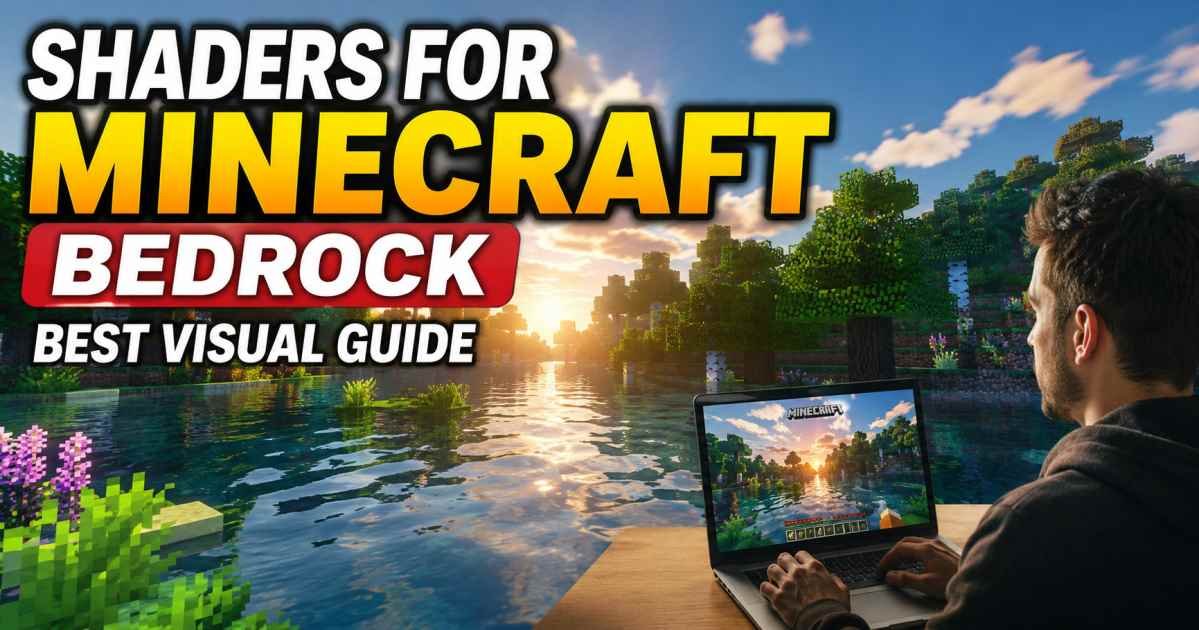
Choosing the right visual enhancements can transform your gameplay experience. When I search for the perfect look, I find that shaders for minecraft bedrock offer the best way to overhaul lighting, shadows, and water without needing a complete game rewrite.
I have compiled this guide to help you navigate the landscape of visual customization in 2026.
What Shaders for Minecraft Bedrock Are
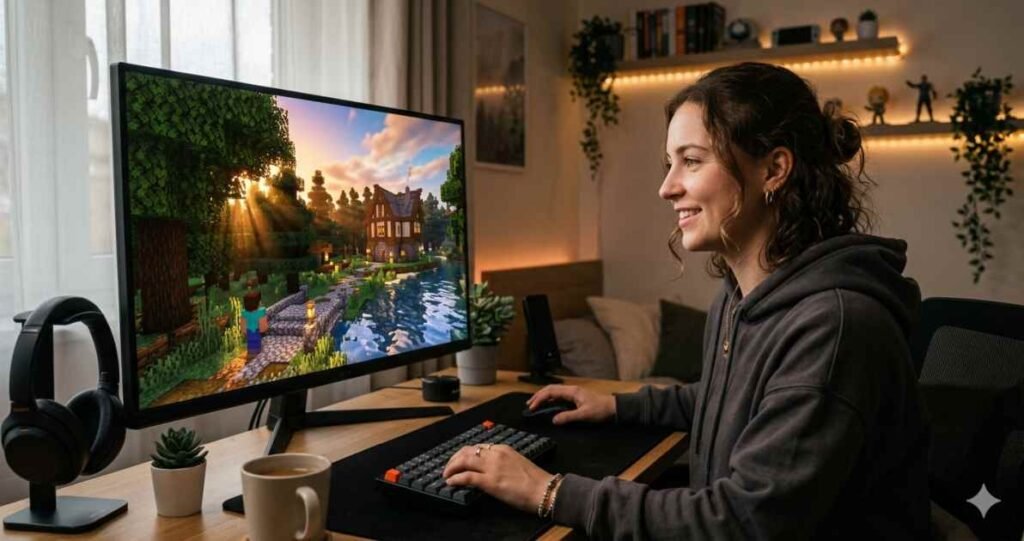
In vanilla Minecraft, the lighting can feel flat and basic. Shaders are specialized modification files that completely overhaul the game’s visual rendering engine. Instead of relying on static light blocks, these files add dynamic, atmospheric effects directly into your world.
The primary purpose of installing shaders for minecraft bedrock is to breathe lifelike depth into pixelated landscapes. These modifications alter how your device processes pixels, transforming basic environments into cinematic experiences.
Key Visual Enhancements Included
- Dynamic Lighting Systems: Torches emit warm, radiating glows that naturally bounce off nearby walls instead of cutting off sharply.
- Atmospheric Skyboxes: Clouds turn into volumetric, shifting masses, while sunrises and sunsets display smooth gradients of orange, pink, and purple.
- Saturated Color Palettes: Green biomes look lush and vibrant, while deep caves feel appropriately dark, moody, and intimidating.
Are Shaders Still Available in Minecraft Bedrock
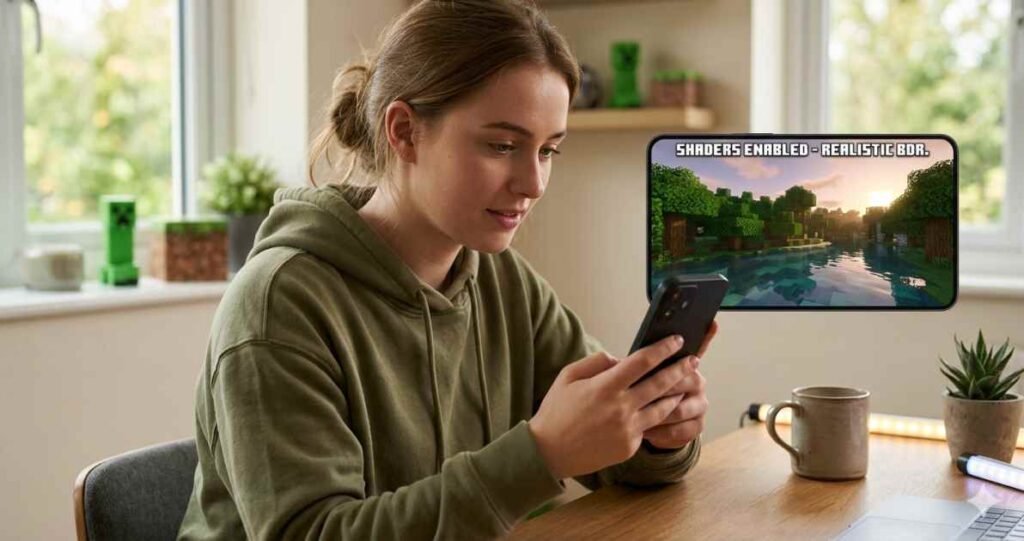
This is a question that frequently confuses the community. The direct answer is yes, but the way they are used has fundamentally changed. A few years ago, Mojang introduced an internal graphics engine called Render Dragon across all Bedrock platforms. This update initially broke old, third-party shader files, leading many players to believe visual modifications were permanently gone.
Today, creators have successfully adapted to this engine. We now have fully operational options designed specifically for the modern rendering pipeline. You can run gorgeous visual modifications on your worlds, though you must ensure you are downloading packs built for the current version of the game.
What Changed with Vibrant Visuals
The introduction of the “Vibrant Visuals” framework and deferred rendering features marked the biggest graphic milestone for Bedrock Edition. Mojang added official support for advanced lighting features directly into the core game engine. This unlocked a new wave of optimization, enabling deep visual overhauls to function smoothly.
Main Technical Shifts
- Deferred Lighting Techniques: Devices can calculate lighting, shadows, and reflections after rendering the basic shapes, saving massive amounts of processing power.
- Native Engine Stability: Because these features are built directly into the Render Dragon code, your game is far less likely to crash when loading high-resolution effects.
- Cross Platform Parity: These updates bring the visual capabilities of mobile, console, and PC players much closer together, closing the historic graphics gap with Java Edition.
Difference Between Shaders and Resource Packs
It is incredibly easy to mix these two terms up when customizing your game. I find it easiest to separate them by what they actually modify: raw texture files versus environmental light rules.
| Feature Type | Resource Packs | Shader Packs |
| Primary Focus | Changes individual block textures and item designs. | Modifies lighting, shadows, skyboxes, and water. |
| File Elements | Alters pixels on the surface of a block (e.g., turning stone into smooth brick). | Dictates how sunlight, torch light, and weather interact with surfaces. |
| Performance Cost | Low to moderate, depending strictly on texture resolution (16×16 up to 512×512). | Moderate to high, depending on rendering calculations and device hardware. |
| Visual Animation | Keeps textures static unless specific animated sub files are included. | Creates constant motion, such as waving leaves, moving grass, and rolling water waves. |
How to Install Shaders for Minecraft Bedrock
The installation process varies depending on whether you play on a desktop computer or a handheld device. Because file systems differ, I break down the two most common pathways below.
Installation for PC Users
- Download a compatible pack ending in the .mcpack extension from a trusted community platform.
- Double-click the downloaded file to automatically launch Minecraft.
- Wait for the top of the game screen to display a message confirming the import was successful.
Installation for Mobile Users
- Download the .mcpack file through your device browser.
- Open your mobile file management application and locate your device downloads folder.
- Tap the file and select “Open With,” then choose Minecraft from the application list to trigger the automatic asset import.
How to Activate Shader Packs in Your World
Once an asset is successfully imported into your game storage, you still need to tell your specific world to load those files. You can apply packs globally or tie them to individual save files.
Step-by-Step Activation Steps
- Navigate to the main menu and press the play button, then click the pencil icon next to the world you want to modify.
- Scroll down the left-hand settings panel until you reach the add-ons section.
- Click on the Resource Packs tab to open your available management menus.
- Open the “My Packs” dropdown menu to view your newly imported files.
- Select the specific pack you want to use, then click the activate button to add it to your active list.
- Launch your world to enjoy your fresh visual layout.
Best Shaders for Minecraft Bedrock
Finding the best shaders for Minecraft Bedrock requires balancing high-end visual fidelity with game performance. The following packs offer the highest-quality options available to the community right now.
Prizma Visuals 2.0
This pack serves as a major game-changer for players using modern deferred rendering features. It completely reworks how light passes through transparent blocks, producing stunning, clean shadows and highly detailed water bodies. The sky transitions feel incredibly cinematic and lifelike.
Revolution Deferred
If you want realistic shaders for minecraft bedrock, this pack should be your primary choice. It focuses heavily on static light accuracy, replicating the deep atmospheric weight usually found in high-end PC setups. It makes stone surfaces look rough and metallic armor glint naturally under sunlight.
Vanilla Reforged
For players who love the classic pixel aesthetic but want a cleaner presentation, this option bridges the gap beautifully. It sharpens block outlines, removes harsh vanilla fog, and evens out light dispersion without changing the core look of your builds.
Best Shaders for Low-End Devices
You do not need an expensive gaming setup to enjoy enhanced graphics. If you are hunting for shaders for minecraft bedrock mobile or playing on an older tablet, these highly optimized options will protect your frame rates.
Newb Shader Series
The Newb family remains the absolute gold standard for potato devices and mobile players. It uses highly efficient code to simulate warm lighting, gentle water waves, and beautifully colored skies without melting your device’s processor.
RG Shader
This pack is built from the ground up to prevent rendering lag. It introduces smooth lighting gradients and soft fog while entirely skipping heavy real-time shadow calculations, giving you a beautiful world with almost zero drop in performance.
Luxen Visuals
Luxen balances visual clarity and device speed perfectly. It brightens up naturally dark areas and cleans up block textures, ensuring your screen stays bright and visible even during stormy in-game nights.
Common Shader Problems and Fixes
Visual modifications can occasionally cause technical hiccups. When an issue pops up, I usually find that it stems from a minor version mismatch or an overloaded device cache.
Troubleshooting Graphical Errors
- Black Screens or Crashing: This usually happens if you attempt to load an old pack built before the Render Dragon engine update. Immediately deactivate the pack in your world settings, then check for a newer version.
- Severe Frame Rate Drops: If your world starts stuttering, open your game video settings and turn off high-performance features like fancy leaves, smooth lighting, or custom volumetric clouds.
- Screen Flickering in the Nether: This common bug occurs when lighting maps conflict in hot dimensions. Updating your pack to the latest release or clearing your global resource cache usually stops the flickering instantly.
Safe Ways to Download Shader Packs
Protecting your gaming device against malicious files is crucial when downloading community modifications. Unofficial storefronts often hide malware inside download buttons.
Safe Downloading Rules
- Stick to Reputable Platforms: Download your packs from established community websites like CurseForge or MCPEDL, where community moderators actively scan files for safety.
- Verify File Extensions: Ensure the file you download finishes strictly with .mcpack or .zip. Never run an installer that ends in .exe or .apk to modify game textures.
- Avoid Sketchy Link Shorteners: If a download page forces you through multiple pop-up windows or asks you to enable browser notifications, close the tab immediately and find an alternative source.
Frequently Asked Questions
Can I use these shaders on my Xbox or PlayStation console?
Modern gaming consoles impose strict limitations on importing files from external sources. While you can use official marketplace packs, custom community packs are generally limited to mobile devices and PC setups.
Do these visual packs disable my world achievements?
No. Because these packs install directly into your resource folder rather than your behavior folder, they do not alter core gameplay rules. You can earn achievements normally with these packs active.
Will installing a shader pack cause my mobile phone to overheat?
Heavy packs can cause mobile devices to warm up over long play sessions. If your phone gets uncomfortably warm to the touch, switching to a lightweight choice like the Newb pack will keep your device cool.